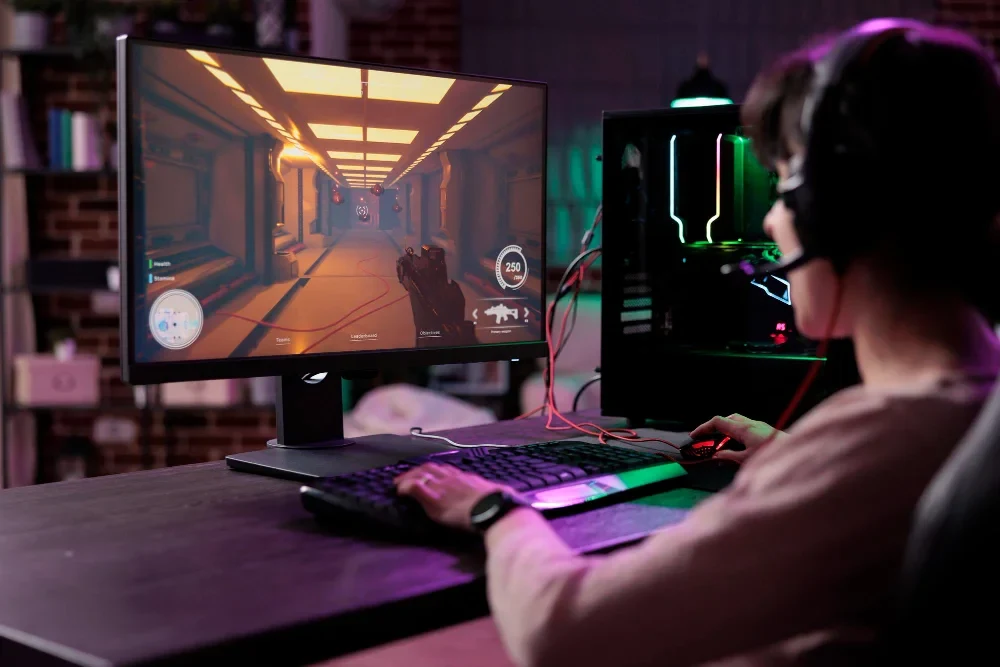
Screen tearing happens when your graphics card finishes a frame at a moment your monitor is already showing the previous one. The result is a horizontal seam where two images meet. Variable refresh rate (VRR) tries to solve that by letting the display adjust how often it refreshes to match the GPU—within a supported range—instead of forcing a fixed 60 or 120 Hz cadence.
This guide explains VRR in plain language, how PC and console implementations differ, and when turning the feature on is worth your time.
Fixed refresh versus variable refresh
A traditional 60 Hz monitor expects a new frame every 16.7 milliseconds. Modern games rarely hit that target consistently. Frame times swing with scene complexity, shader cost, and background tasks.
You historically had three imperfect choices:
| Approach | Benefit | Cost |
|---|---|---|
| V-Sync on | No tearing | Input lag; stutter when frames miss the deadline |
| V-Sync off | Lower input lag | Visible tearing |
| Frame rate cap slightly below refresh | Less tearing | Wasted GPU headroom; still not adaptive |
VRR changes the contract: the display waits for the GPU within a negotiated window, updating the panel when a complete frame is ready.
How VRR feels in practice
Players often describe VRR as “smooth without soap opera motion.” That is subjective, but the mechanics are consistent:
- Tearing drops because the panel does not swap mid-scan when a frame arrives late.
- Stutter can soften when frame times wobble between, say, 48 and 72 fps on a 120 Hz VRR screen.
- Input lag is usually closer to V-Sync off than to traditional V-Sync on—though exact numbers depend on the monitor firmware and game mode.
Wyrd Life does not publish latency measurements here. Treat vendor claims as marketing until you see independent testing for your specific model.
Major standards and brand names
Several names overlap. They are not all interchangeable.
HDMI VRR
HDMI 2.1 introduced a VRR mode for consoles and TVs. Xbox Series X|S and PlayStation 5 can enable VRR on compatible displays that expose the feature through system menus. Always check:
- Whether your TV firmware enables Game Mode or ALLM
- Whether the HDMI port is labeled 2.1 or supports the bandwidth your console needs at target resolution
DisplayPort Adaptive-Sync (VESA)
PC monitors often implement VESA’s Adaptive-Sync over DisplayPort. Windows and GPU control panels refer to generic “Adaptive Sync” toggles. This is the baseline open standard many FreeSync-labeled monitors support.
AMD FreeSync
FreeSync is AMD’s branding for Adaptive-Sync compliance tiers (FreeSync, FreeSync Premium, FreeSync Premium Pro). Premium tiers may require low framerate compensation (LFC) and stricter flicker behavior. Monitors can be FreeSync-branded while also working with NVIDIA GPUs when the panel supports generic VRR.
NVIDIA G-Sync
G-Sync began as NVIDIA modules in monitors; today you will see G-Sync Compatible (Adaptive-Sync validated by NVIDIA) and full G-Sync hardware modules on high-end models. The module approach can improve variable overdrive behavior but raises price.
When shopping, read the fine print on the box: “G-Sync Compatible” is not the same as a G-Sync module, and neither guarantees HDR performance.
Console setup checklist
On supported consoles:
- Enable 120 Hz output only if your display accepts it at your chosen resolution.
- Turn on VRR in system video settings after firmware updates.
- Prefer Game Mode on TVs to bypass image processing that adds latency.
Some games expose their own frame-rate caps or performance modes. A 40 fps quality mode can still benefit from VRR on a 120 Hz panel if the VRR range includes 40 Hz.
PC setup checklist
On PC:
- Install current GPU drivers.
- Enable VRR in NVIDIA Control Panel or AMD Software for the display.
- Disable duplicate V-Sync unless a specific game needs it—double synchronization can add lag.
- Cap frame rate slightly below your maximum refresh if you hear coil whine or see brightness flicker at the top of the VRR range (a community-reported issue on some panels).
For esports titles targeting 240 Hz, VRR matters less if you consistently exceed refresh. For open-world games with variable load, VRR matters more.
VRR range and low framerate compensation
Every VRR display advertises a range, such as 48–144 Hz. Below the minimum, frames may repeat or LFC may multiply frames to keep motion coherent. If a game hovers at 35 fps on a 48–144 Hz monitor:
- LFC might display each frame twice to approximate 70 Hz presentation
- Without LFC, you may fall back to tearing or fixed refresh behavior
Check monitor reviews for how aggressively a model handles sub-minimum fps—not just the marketing range on the spec sheet.
HDR, VRR, and bandwidth trade-offs
4K HDR with high refresh demands cable and port bandwidth. A setup that supports 4K/120/VRR on paper may require:
- Ultra High Speed HDMI cables for long runs
- DisplayPort 1.4 with DSC (Display Stream Compression) on some PC monitors
If VRR toggles grey out, verify cable certification before blaming the GPU.
When VRR is not the bottleneck
Smooth motion also depends on:
- CPU frame pacing in simulation-heavy games
- Shader compilation stutter on first launch after driver updates
- Network latency in online games—VRR cannot fix server tick rate
Turning VRR on does not replace tuning graphics settings or fixing thermal throttling.
Frequently asked questions
Does VRR work on any monitor?
No. The display must advertise VRR support and negotiate with the GPU or console over a compatible port and cable.
Can I use FreeSync with an NVIDIA card?
Often yes on G-Sync Compatible or Adaptive-Sync panels, but verify on the manufacturer’s compatibility list.
Is VRR the same as motion interpolation on TVs?
No. TV motion smoothing (SOAP opera effect) synthesizes frames. VRR displays real frames from the GPU when they are ready.
Does VRR hurt image quality?
Usually not, but some panels change backlight behavior at the bottom of the VRR range. Firmware updates occasionally address flicker.
Bottom line
Variable refresh rate aligns your display with your GPU’s uneven frame output, reducing tearing and many stutter artifacts without the heavy input lag of old-school V-Sync. Learn your monitor’s VRR range, enable the right system toggles, and pair VRR with honest performance targets. It is display technology—not magic—and it shines when frame times wobble more than they peak.